Tools
Reference for everything E-SPACE includes: the Rhino commands, the Grasshopper components, the Quest app, the phone app, the web viewer and the QR markers.
Rhino commands
They all start with Es (for E-SPACE). The old XRSync… names still work as aliases.
| Command | What it does |
|---|---|
EsSync | Connects or disconnects Rhino. It opens the session, starts the local server if needed and shows the QR. While connected, any change to the model travels to the viewers. |
EsPanel | Opens the E-SPACE panel: connection status, connected devices and shortcuts. It can be docked next to the layers panel. |
EsQR | Shows the page with the session QR and code again (so another viewer can join). |
EsSend | Resends the whole scene to the viewers (useful as a diagnostic). |
EsSettings | Settings: automatic server (yes / no), server folder, model alignment, interactivity of Rhino objects and more. |
EsMarker | Creates QR markers in the model. It asks for the coordinates of the QR corner (typed or with a click) and its name (ES-01, ES-02…), one after another, until you press Enter without typing anything. |
EsMarkerPrint | Generates an A4 sheet with the marker QR codes ready to print. |
EsPrecision | Switches the accuracy map on or off: it colors each object and a floor grid according to how well the model will sit at each place, given the document's markers (blue → green → red). |
EsInteract | Lets you move, rotate and/or scale from the viewer the ordinary Rhino objects you have selected (with one document setting and one per object). |
EsUsers | Shows or hides the connected users in Rhino: silhouette, field of view and gaze. The phone is drawn as a phone and the Quest as a pair of goggles. |
The Rhino panel
The panel (EsPanel) puts in one place the connection status, the list of connected devices and the usual shortcuts: connect, the session QR, markers, the accuracy map, the users in the viewports and the alignment. It stores nothing of its own: it reads and writes the same things as the commands, so the two always go together.
Grasshopper components
The plug-in adds the E-SPACE tab to Grasshopper (with the cube logo). To use it you must be connected with EsSync.
Sync Geometry: show geometry in the viewer
This is the main component. It takes geometry from your definition, shows it in mixed reality and returns whatever was moved there.
| Input | What it is |
|---|---|
| G Geometry | Meshes, polysurfaces, SubD, curves, and also Text Dot and Text Entity (to number bricks or pieces). |
| M Material | A color (Colour Swatch) or a material (Create Material). If there is none, it uses the layer color. |
| I Interaction | What can be done in the viewer: Move, Rotate and/or Scale (checkboxes). With nothing checked, the piece stays fixed. |
| L Layer | The object's Rhino layer; created by itself if it does not exist. Supports sublayers with ::. |
| V View | Display mode: depending on the app, shaded, realistic, wireframe or edges. |
| T Transform | Move, rotate or scale from Grasshopper. What you move in the viewer adds on top. |
| P Parent | The Object output of another Sync Geometry: if the parent moves, this one follows. |
| E Events | Which events the viewer reports about this object (hover, tap). Empty = all. |
| H Accuracy map | A switch: colors the geometry in Rhino according to how accurate it will be with the QR codes. It only changes the preview in Rhino. |
Outputs: G the geometry at its current position (including what was moved in the viewer), T the current transform and O the object identifier, to use as the Parent of another Sync Geometry.
Grasshopper parameters in the viewer
Next to every slider, toggle, value list and button a small E-SPACE square appears. When on, that parameter shows up in the viewer's Param tab and you control it from there: Grasshopper recalculates and the model changes instantly. The state of the squares is saved inside the .gh file and no components need to be added.
- Sliders respect their limits, step and decimals. Each has ‹ › arrows, a slider to drag and a tappable number that opens a numeric keypad.
- Lists are stepped through with a button; buttons are pressed once, as in Grasshopper.
- Classic example: Slider → List Item → Sync Geometry to show one course of bricks at a time, with the slider in the viewer.
Reading the viewer from Grasshopper
Seven Get components (and their Deconstruct to open each piece of data) give you what the viewer sees and does, updated about 15 times per second:
| Component | What it delivers |
|---|---|
| Get Device | The name, type (headset or phone), plane and position of the viewer. |
| Get Gaze | The gaze ray, the object looked at and the point. |
| Get Hands | The joints and fingertips of each hand, and the pinch. |
| Get Pointers | The pointers (controller or hand ray), their type and whether they are pressed. |
| Get QR Codes | The QR codes the viewer is looking at: their text, plane and size. |
| Get Markers | The document markers (EsMarker): name, point at the QR corner, plane and whether they follow their physical QR. |
| Get Environment | Detected environment planes (floor, wall, ceiling, table). |
| Get Scan | The mesh of a room scan, when the viewer provides it. |
They all accept optional inputs to filter: a device by name, only headsets or only phones, only the left hand or the right, and an event (for example, to recompute only when someone taps).
Events: react to what happens in the viewer
- On Hover: when a hand or pointer passes over an object.
- On Tap: a tap on the object (delivers a pulse and a counter).
- On Toggle: a switch that flips with every tap.
And the gestures the viewer recognizes: Tap, Press, Release, DragStart, Drag, DragStop, HoldStart, HoldStop, plus HoverStart and HoverStop. With these your definition can react to what the person using the viewer does.
The Meta Quest 3 app
The app to build on site, hands free. When you open it you see an intro animation (“Reading your space… Transforming your space…”) that ends with the logo and the welcome; then a 6-step tutorial with animated hands (you can skip it) and the Link with Rhino card. The camera only turns on when you tap “Link”.
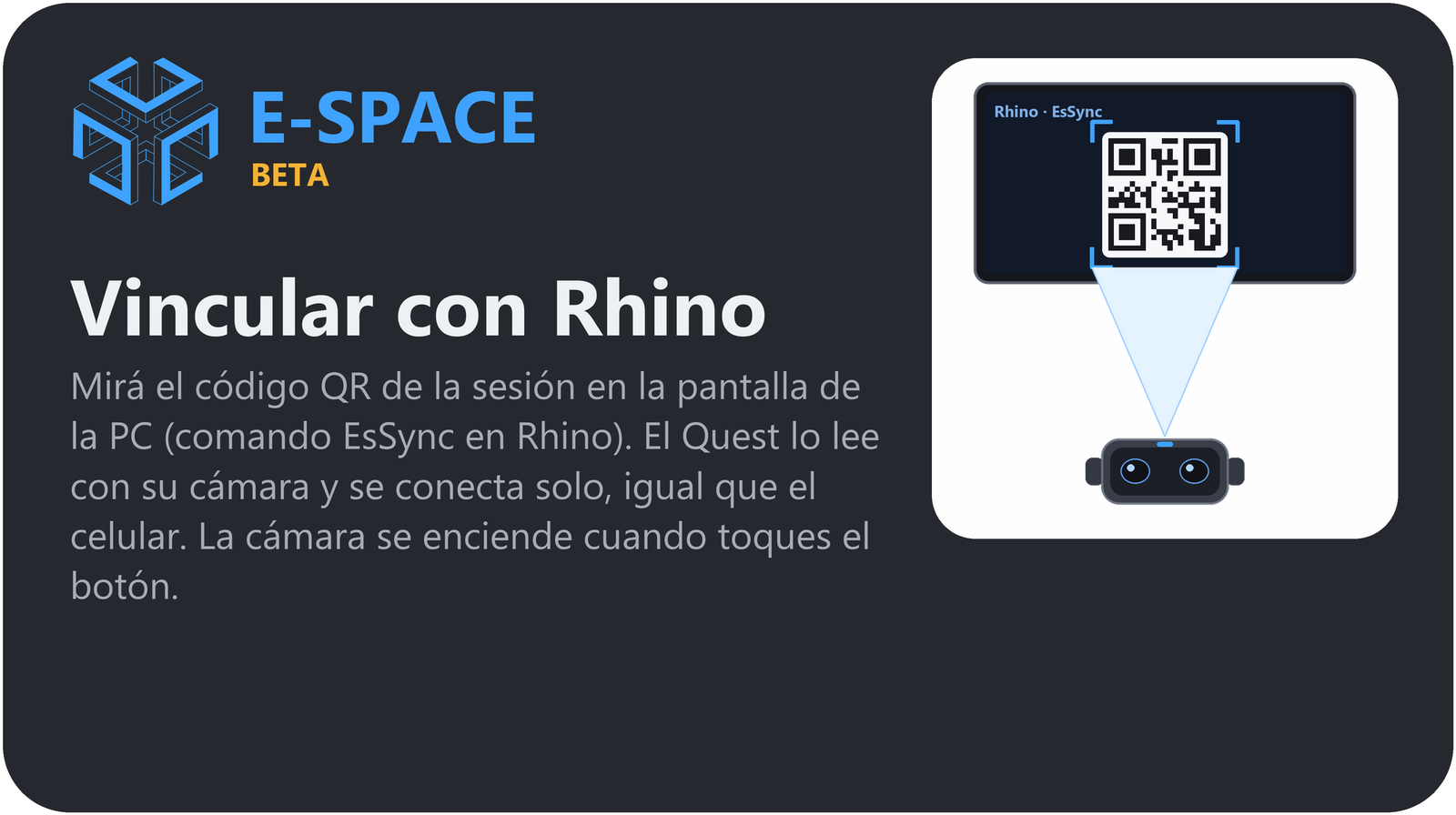
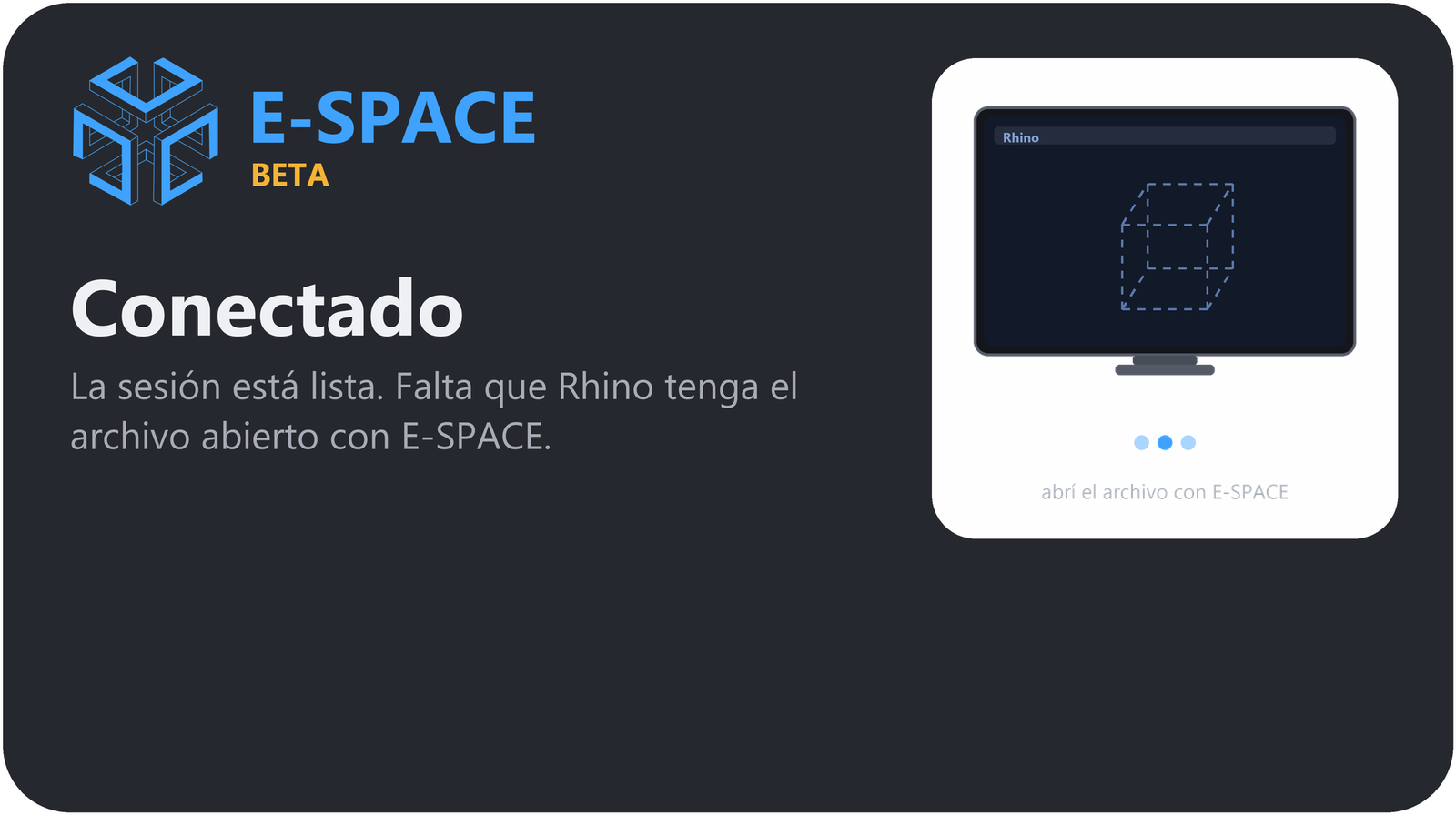
With the session connected, the app asks “How do you want to place the model?” (With QR · By hand · Table or floor) and shows a mini tutorial for the chosen way. To finish, Close (Session tab) turns the app off with an animation and an exit sound.
The Quest menu
It opens with the ≡ button on the left controller or by turning the palm of your left hand toward you (held for half a second). It appears in front of you, follows you if you move, and closes by itself when you stop looking at it. You touch it with the ray, the trigger, a pinch or your fingertip.
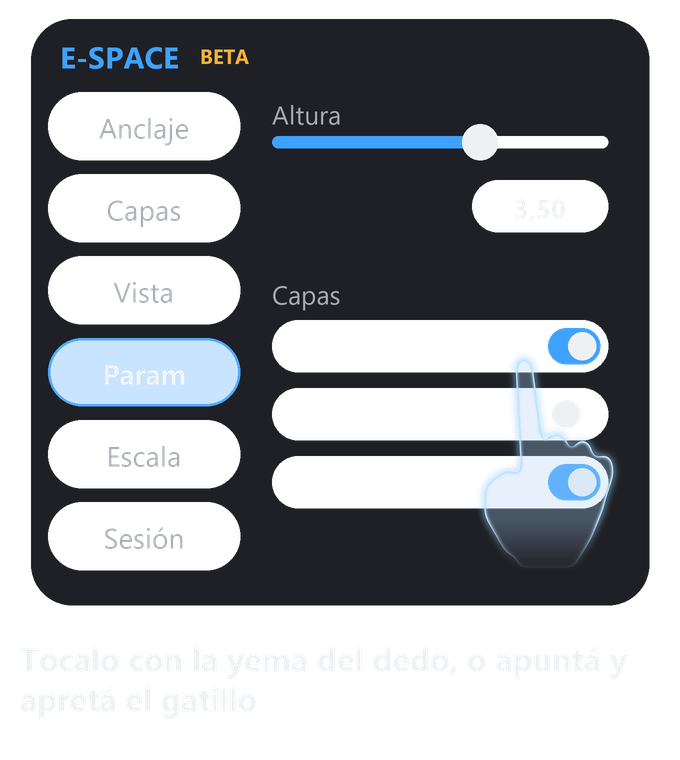
| Tab | What is there |
|---|---|
| Anchoring | The three modes: With QR (current accuracy, confidence indicator, status of each marker, Restart and Fix), Points by hand (which points are missing, Re-anchor) and Floor / table (Floor or Table, measure the table height, rotate in 15° steps, Reposition). |
| Layers | The list of Rhino layers with a switch on each. |
| View | Realistic, Shaded, Wireframe or Edges, for the whole model. |
| Param | The Grasshopper parameters: sliders with ‹ › arrows, tappable number with numeric keypad, toggles, lists and buttons. |
| Scale | 1:1, 1:5, 1:10, 1:25, 1:50 and 1:100. With two or more QR codes (or points by hand) the model is always 1:1; on the floor or a table you can choose any. |
| Session | Model and server data, Reset all (asks to confirm), Unlink and Close. |
Buttons are at least about 2.5° in angular size, which is what Meta asks for comfortable pointing. The interface sounds (open, close, tap, type) are soft and tuned to one note, like the start and exit sounds.
Grab, move, rotate and scale
You point at a piece (with the ray or your hand) and grab it with the trigger or a pinch. While you hold it:
Move
The object goes with your hand, wherever you take it.
Push away and pull closer
With one hand, you stretch your arm and it moves away; you pull it in and it comes closer. While you keep it stretched it keeps moving away, like a lever.
Scale
With both hands in line: move them apart to enlarge, bring them together to shrink.
Rotate
With both hands, one passes beside the other, like a steering wheel. It rotates in any direction with no limit.
The viewer decides between scaling and rotating by how the hands move relative to each other (in line = scale, to the side = rotate); if you get it wrong, bring your hands back and it undoes.
The phone app
The Android version (with ARCore) has the same six tabs and the same anchoring system, handled with your fingers. It has its own page with all the details.
The web viewer (on the PC)
A preview that opens in the browser of the same computer where Rhino runs (http://127.0.0.1:8765), without mixed reality. It is useful to test a definition, show the model and check that the session works.
- Move, rotate and scale pieces with the mouse, with a gumball (arrows and rings) to move along the axes; with Shift you move vertically.
- The same layers, views and parameters as the other viewers.
- Selection and touch and hover events, which reach Grasshopper like those of any viewer.
QR markers
Markers are the reference points between the model and the real place. In Rhino they are just a point with its name (the top-left corner of the QR); there is no need to say which way it faces. They are numbered ES-01, ES-02… on the “ES Markers” layer.
EsMarker: place the points where the QR codes will go.EsMarkerPrint: print the A4 sheet with the QR codes.- Stick them on those same points in the real place (with tape, measuring them well).
EsPrecisionshows you where they will be accurate and where it is worth adding another.
The text each QR carries identifies the marker; the session QR is different and is shown by EsSync / EsQR.